
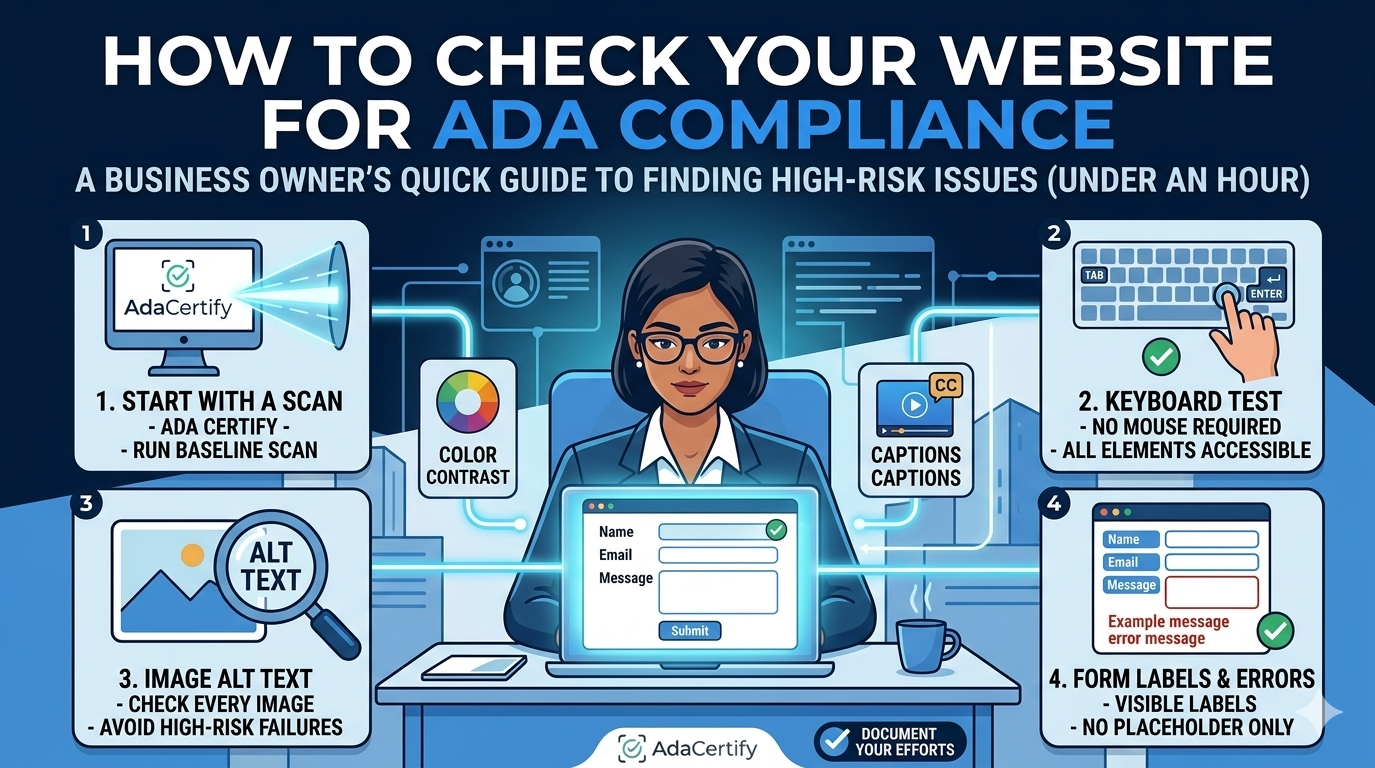
ADA Compliance Checklist is a practical working checklist, not a theory lesson. These are the 12 items that appear most consistently in ADA demand letters and WCAG audit reports for business websites. Go through this on your homepage and your most important pages. If you pass all 12, your site is in significantly better shape than most business websites out there right now.
The Legal Standard You Are Checking Against
ADA compliance for websites means meeting WCAG 2.1 Level AA. That is the standard the DOJ references and that courts consistently apply in ADA website litigation. Every item on this checklist maps to a specific WCAG 2.1 success criterion so you know exactly what you are testing and why it matters.
The 12-Point ADA Website Compliance Checklist
1. Every image has alt text
Right-click any image, open the inspector, and look for the alt attribute on the img tag. It should have a description of what is in the image. Decorative images should use an empty alt attribute. A missing alt attribute entirely is a WCAG 1.1.1 failure and the most cited issue in ADA demand letters.
2. Videos have accurate captions
Play any video on your site and check whether captions are available. Auto-generated YouTube captions do not meet WCAG standards without human review and correction. Any prerecorded video with speech or meaningful audio needs synchronized captions. This is WCAG 1.2.2.
3. Text meets the contrast ratio requirement
Use the free WebAIM Contrast Checker and enter your text and background colors. Normal body text needs a 4.5 to 1 ratio minimum. Large text at 18 points or above needs 3 to 1 minimum. Light gray on white almost always fails. This is WCAG 1.4.3.
4. Everything works with a keyboard and no mouse
Tab through your entire site without touching your mouse. You should be able to reach every link, every button, every form field, and every interactive element. If anything requires a mouse click to access, that is WCAG 2.1.1.
5. The keyboard focus indicator is always visible
As you tab through the site, there should be a visible outline or highlight showing which element is currently focused. Many sites remove this by setting outline to none in their CSS, which creates an invisible experience for keyboard users. This is WCAG 2.4.7 and it shows up in a lot of complaints.
6. Form fields have proper labels, not just placeholders
Inspect any form on your site. Each input field should have an associated label element, not just placeholder text inside the field. Placeholders disappear when users start typing, leaving screen reader users with no context. This is WCAG 1.3.1 and 3.3.2.
7. Error messages tell users specifically what went wrong
Submit a form with a required field empty. The error message should appear as text, name the specific field that has the problem, and explain what is needed to fix it. A field turning red without any text explanation fails WCAG 3.3.1.
8. Every page has a unique, descriptive title
Look at the browser tab when you visit different pages on your site. Each page should have its own descriptive title, not just your company name repeated on every single page. This is WCAG 2.4.2 and it also affects how your pages appear in search results.
9. Heading structure is logical and consistent
Install the free WAVE browser extension and view the heading structure of any page. There should be one H1 per page, followed by H2 headings for major sections, then H3 for subsections underneath those. Jumping from H1 directly to H4, or using heading tags just because they make text look bigger, is a WCAG 1.3.1 failure.
10. Link text makes sense without surrounding context
Read every link on the page as if it were the only thing you could see. Links that say “click here,” “read more,” or “learn more” fail WCAG 2.4.4 because screen reader users often navigate a page by tabbing through links alone, and those links need to describe their destination clearly.
11. Nothing flashes more than three times per second
Any animation, video, or carousel that flashes rapidly can trigger seizures in users with photosensitive epilepsy. The threshold in WCAG 2.3.1 is three flashes per second. Autoplaying carousels and video backgrounds with strobe-like effects are the most common sources of this failure on business websites.
12. The site is readable and usable at 200 percent zoom
Press Ctrl and the plus key repeatedly until your browser is zoomed to 200 percent. Your content should reflow so it remains readable without any horizontal scrolling. This matters for users with low vision who rely on browser zoom rather than screen magnification software. This is WCAG 1.4.4.
What to Do After Going Through This Checklist
If you found failures on three or more of these items, your site has real compliance exposure that is worth addressing now rather than after receiving a demand letter. Prioritize your fixes by page traffic and user impact: forms, checkout flows, and contact pages first.
This checklist covers the highest-risk items, but a full WCAG 2.1 Level AA audit covers 50 success criteria. To go deeper and get a complete picture of your site’s compliance status, run it through AdaCertify. It scans all WCAG 2.1 Level AA criteria and returns a prioritized report that tells you exactly what to fix and in what order, without requiring you to decode technical accessibility documentation to understand the results. Use this checklist as your starting point. Use AdaCertify to finish the job.
That was surprisingly useful, I wasn’t expecting to find something like this today. This actually helped more than I thought, and that’s what makes it stand out a bit.